<?xml version="1.0" encoding="utf-8"?><feed xmlns="http://www.w3.org/2005/Atom" ><generator uri="https://jekyllrb.com/" version="3.10.0">Jekyll</generator><link href="https://theron.wtf/feed.xml" rel="self" type="application/atom+xml" /><link href="https://theron.wtf/" rel="alternate" type="text/html" /><updated>2026-04-20T16:03:58+00:00</updated><id>https://theron.wtf/feed.xml</id><title type="html">Forty Eight Degrees</title><subtitle>theron.wtf</subtitle><entry><title type="html">hollerback: Signal for your AI agents</title><link href="https://theron.wtf/2026/04/20/hollerback.html" rel="alternate" type="text/html" title="hollerback: Signal for your AI agents" /><published>2026-04-20T00:00:00+00:00</published><updated>2026-04-20T00:00:00+00:00</updated><id>https://theron.wtf/2026/04/20/hollerback</id><content type="html" xml:base="https://theron.wtf/2026/04/20/hollerback.html"><![CDATA[<p>A couple days ago I posted about <a href="https://theron.wtf/2026/04/18/goose-signal-gateway.html">goose-signal-gateway</a>, a rough proof-of-concept that let you text your local Goose instance from Signal. It worked. The core loop was implemented, I was using it, and I wanted to share it while the code was still honest about what it was.</p>

<p>Since then I’ve done a proper pass on it. The project is now called <strong>hollerback</strong>, it’s on <a href="https://pypi.org/project/hollerback/">PyPI</a>, and it’s meaningfully more capable than what I described two days ago. Here’s what changed and why.</p>

<hr />

<h2 id="why-hollerback">Why “hollerback”</h2>

<p>The original name reflected the implementation: a gateway between Signal and Goose. As I kept building it became clear the thing wasn’t really a Goose-specific gateway. It was a Signal number that any AI agent could use. Goose is still the primary target but a rename felt right.</p>

<hr />

<h2 id="two-use-cases-one-phone">Two use cases, one phone</h2>

<p>The clearest way I’ve found to describe hollerback is a dedicated Signal number to share with your agents. There are two primary use cases today.</p>

<p><strong>Use case 1: Goose is live and waiting.</strong> Someone messages the number, Goose picks up and replies: unattended, session-aware, in real time. This is the use case from the April 18 post.</p>

<p><strong>Use case 2: An authorized agent can use the number to send messages.</strong> Any MCP client (Claude CLI, Goose Desktop, Cursor, Claude Desktop) connects to hollerback’s MCP endpoint via a standard HTTP Bearer token and gets tools to send Signal messages, list paired contacts, and read inbound traffic. If you’re in a Claude session and want to send someone a Signal message, you can. If you want Goose to notify you on Signal when a long task finishes, it can.</p>

<p>They share one process, one contact list, one phone number. You can run either use case alone or both together.</p>

<hr />

<h2 id="whats-working-today">What’s working today</h2>

<ul>
  <li>Signal to Goose: inbound messages create or resume goosed sessions, Goose replies stream back to Signal</li>
  <li>Typing indicators while Goose is processing; read receipts on delivery</li>
  <li>Pairing flow for unknown senders: an unknown number gets a code; you approve it via CLI before the bot responds</li>
  <li>MCP server on port 7322 with four tools: <code class="language-plaintext highlighter-rouge">get_signal_identity</code>, <code class="language-plaintext highlighter-rouge">list_signal_contacts</code>, <code class="language-plaintext highlighter-rouge">send_signal_message</code>, <code class="language-plaintext highlighter-rouge">get_messages</code></li>
  <li>Per-agent Bearer auth: multiple agents can share one Signal number, each with its own key</li>
  <li>Graceful operation without Goose Desktop: messages buffer when goosed is unreachable, auto-replies resume on reconnect</li>
  <li>systemd user service, <code class="language-plaintext highlighter-rouge">hollerback.service</code></li>
  <li>Running on Fedora, smoke-tested in production</li>
</ul>

<hr />

<h2 id="install">Install</h2>

<div class="language-bash highlighter-rouge"><div class="highlight"><pre class="highlight"><code>uv tool <span class="nb">install </span>hollerback
hollerback setup
hollerback start <span class="nt">--detach</span>
</code></pre></div></div>

<p>Or from source at <a href="https://github.com/theronconrey/hollerback">github.com/theronconrey/hollerback</a>. Full setup instructions in the README.</p>

<hr />

<p>The project is really early. I’m settling in where I can help, and I’m looking forward to engaging with the Goose team!</p>

<p style="text-align: center; margin-top: 1em;"><a href="https://github.com/theronconrey/hollerback">hollerback on GitHub</a> | <a href="https://pypi.org/project/hollerback/">hollerback on PyPI</a> | <a href="https://github.com/aaif-goose/goose">Goose on GitHub</a></p>]]></content><author><name></name></author><summary type="html"><![CDATA[A couple days ago I posted about goose-signal-gateway, a rough proof-of-concept that let you text your local Goose instance from Signal. It worked. The core loop was implemented, I was using it, and I wanted to share it while the code was still honest about what it was.]]></summary></entry><entry><title type="html">Texting Goose: a Signal bridge for Goose Desktop</title><link href="https://theron.wtf/2026/04/18/goose-signal-gateway.html" rel="alternate" type="text/html" title="Texting Goose: a Signal bridge for Goose Desktop" /><published>2026-04-18T00:00:00+00:00</published><updated>2026-04-18T00:00:00+00:00</updated><id>https://theron.wtf/2026/04/18/goose-signal-gateway</id><content type="html" xml:base="https://theron.wtf/2026/04/18/goose-signal-gateway.html"><![CDATA[<p>I’ve been running <a href="https://github.com/block/goose">Goose Desktop</a> locally for a few weeks now, using Mistral as the backend. It’s become a regular part of how I work through problems at the computer. The obvious next question was: what about when I’m not at the computer?</p>

<p>Today I put together a small proof-of-concept that answers that — <a href="https://github.com/theronconrey/goose-signal-gateway">goose-signal-gateway</a>, a Python service that bridges Signal Messenger to a running Goose instance. You send a text, Goose replies.</p>

<hr />

<h2 id="how-it-works">How it works</h2>

<p>The gateway sits between two daemons that were already running on my home server:</p>

<ul>
  <li><code class="language-plaintext highlighter-rouge">signal-cli</code> — handles Signal protocol and exposes an HTTP API</li>
  <li><code class="language-plaintext highlighter-rouge">goosed</code> — the Goose agent server that powers the Desktop client</li>
</ul>

<div class="language-plaintext highlighter-rouge"><div class="highlight"><pre class="highlight"><code>Signal (phone) → signal-cli → gateway → goosed → Mistral → Signal reply
</code></pre></div></div>

<p>When a message comes in over Signal, the gateway creates a Goose session (or reuses the existing one for that sender), forwards the text, streams the reply back, and sends it as a Signal message. Each Signal conversation gets its own persistent Goose session, so context carries across messages.</p>

<p>The interesting part technically was figuring out <code class="language-plaintext highlighter-rouge">goosed</code>’s actual API. It’s not documented publicly — I had to probe it against a live instance to map out the endpoints, auth scheme, and how the SSE streaming works. That’s all captured in <a href="https://github.com/theronconrey/goose-signal-gateway/blob/master/docs/acp-findings.md"><code class="language-plaintext highlighter-rouge">docs/acp-findings.md</code></a> in the repo if you’re curious.</p>

<hr />

<h2 id="still-early">Still early</h2>

<p>This is genuinely a rough proof of concept. A few things that work:</p>

<ul>
  <li>Send a Signal message, get a Goose reply</li>
  <li>Session context is maintained within a conversation</li>
  <li>Runs against whatever provider Goose Desktop is configured for (Mistral in my case)</li>
</ul>

<p>A few things that don’t yet:</p>

<ul>
  <li>Sessions don’t show up in the Goose Desktop sidebar — the Desktop doesn’t poll for externally-created sessions, it only knows about ones it started itself. Worth filing upstream.</li>
  <li>No message dedup — if Signal delivers a message twice, Goose replies twice</li>
  <li>Sessions reset on gateway restart</li>
  <li>Linux only (uses <code class="language-plaintext highlighter-rouge">/proc</code> to discover goosed’s dynamic port)</li>
</ul>

<hr />

<h2 id="where-id-like-to-take-it">Where I’d like to take it</h2>

<p>Goose itself is moving fast. Once the agent API stabilizes and there’s a cleaner way to integrate with it — rather than poking at an undocumented internal HTTP server — I’d like to revisit this properly. The goal would be something robust enough to leave running: a persistent bridge so you can have a real conversation with your local agent from your phone, with full Desktop visibility on the same session.</p>

<p>For now it’s a fun thing that works well enough to be useful. If you’re running Goose Desktop and signal-cli and want to try it:</p>

<ul>
  <li><a href="https://github.com/theronconrey/goose-signal-gateway">github.com/theronconrey/goose-signal-gateway</a></li>
</ul>

<p style="text-align: center; margin-top: 1em;"><a href="https://github.com/theronconrey/goose-signal-gateway">goose-signal-gateway on GitHub</a> | <a href="https://github.com/block/goose">Goose on GitHub</a></p>]]></content><author><name></name></author><summary type="html"><![CDATA[I’ve been running Goose Desktop locally for a few weeks now, using Mistral as the backend. It’s become a regular part of how I work through problems at the computer. The obvious next question was: what about when I’m not at the computer?]]></summary></entry><entry><title type="html">peerdup: a weekend of fixes</title><link href="https://theron.wtf/2026/04/12/peerdup-a-week-of-fixes.html" rel="alternate" type="text/html" title="peerdup: a weekend of fixes" /><published>2026-04-12T00:00:00+00:00</published><updated>2026-04-12T00:00:00+00:00</updated><id>https://theron.wtf/2026/04/12/peerdup-a-week-of-fixes</id><content type="html" xml:base="https://theron.wtf/2026/04/12/peerdup-a-week-of-fixes.html"><![CDATA[<p>When I wrote the <a href="https://theronconrey.github.io/2026/04/08/peerdup-no-cloud-required/">introductory post</a> last week, peerdup worked - but “worked” was carrying a lot of heavy lifting in that sentence. The sync loop ran. Files moved between machines. The CLI did what you asked. But if you actually beat on it, you’d find a pile of edge cases that ranged from annoying to genuinely broken. So this weekend I wanted to get it sorted out.</p>

<h1 id="sync-engine">Sync engine</h1>

<p>The biggest category of bugs. File sync sounds simple until you actually implement it, and then it turns out there are a lot of ways to get it wrong.</p>

<p><strong>Efficient renames and moves.</strong> When a folder gets reorganized - files renamed, moved into subdirectories, whatever - peerdup would previously just re-transfer everything. That’s wasteful and slow. The fix: when a peer receives a new torrent layout, peerdup now moves existing files into place <em>before</em> libtorrent checks pieces. If the data is already there under a different path, it gets repositioned, not re-downloaded. This works by matching files by name and size against the incoming layout and pre-positioning any matches. Stale files and empty directories from the prior layout get cleaned up automatically in the same pass.</p>

<p><strong>Ping-pong.</strong> This one took a while to diagnose. Two peers would sync, both see the resulting filesystem changes, both react, and the two daemons would end up in an endless loop of overwriting each other. The fix was to pause the filesystem watcher during the SYNCING state so the daemon doesn’t react to its own incoming changes. Queued events are drained cleanly when the transition to SEEDING completes.</p>

<p><strong>Bidirectional sync.</strong> An earlier version had “owner immunity” - the share owner’s version always won. That sounds reasonable until you think about what it means in practice: if the non-owner machine changed a file, that change could silently disappear. Reverted that. Both sides now accept remote changes, with sequence numbers on the LAN wire format determining which version wins when there’s a genuine conflict.</p>

<p><strong>Bootstrap on empty shares.</strong> Joining a share that had no files yet crashed the daemon. Fixed.</p>

<p><strong>Stale torrent cache.</strong> If you deleted files from a share and then rebuilt it, the old <code class="language-plaintext highlighter-rouge">.torrent</code> cache could cause the deleted files to reappear like ghosts. The fix is simple: delete the cache before rebuilding.</p>

<h1 id="lan-discovery">LAN discovery</h1>

<p>The LAN multicast wire format went through three revisions this weekend.</p>

<p>v2 added peer names to multicast packets, so you can actually tell which machine is which when you run <code class="language-plaintext highlighter-rouge">peerdup share peers</code>. v3 added per-share <code class="language-plaintext highlighter-rouge">info_hash</code> to the packets - the daemon now detects when it’s looking at a stale hash and automatically switches to the remote torrent. v4 added per-share sequence numbers, which is what makes conflict resolution work without a registry.</p>

<p>One subtle fix: the daemon was only sending multicast to the multicast group address, which works fine between devices on the same WiFi AP, but doesn’t reach wired machines when the AP doesn’t forward multicast. Added a subnet broadcast fallback to <code class="language-plaintext highlighter-rouge">255.255.255.255</code> so wired and wireless peers can find each other reliably.</p>

<p>Interface auto-detection also landed. Previously you had to know which network interface to use. Now the daemon picks the interface associated with the default gateway and <code class="language-plaintext highlighter-rouge">peerdup-setup</code> asks you to confirm it.</p>

<h1 id="security">Security</h1>

<p>this is still a work in progress. not for prod use. yada yada yada.</p>

<p><strong>Announce rate limiting.</strong> Each <code class="language-plaintext highlighter-rouge">(peer_id, share_id)</code> pair gets a token bucket. If a peer announces too aggressively, it gets a <code class="language-plaintext highlighter-rouge">RESOURCE_EXHAUSTED</code> response with a <code class="language-plaintext highlighter-rouge">Retry-After</code> header. The limit is configurable in <code class="language-plaintext highlighter-rouge">config.toml</code>.</p>

<p><strong>Audit logging.</strong> Every authenticated RPC is now written to a structured JSON log via a rotating file handler (10 MB × 5 files). If something goes wrong, there’s a record.</p>

<p><strong>TLS defaults.</strong> Registry <code class="language-plaintext highlighter-rouge">tls.enabled</code> now defaults to <code class="language-plaintext highlighter-rouge">true</code> on new installs. Previously it defaulted to off, which was the wrong default.</p>

<h1 id="observability">Observability</h1>

<p><code class="language-plaintext highlighter-rouge">peerdup status</code> now shows real health information: whether the database is reachable, whether the TTL sweep is running, an overall <code class="language-plaintext highlighter-rouge">ok</code>/<code class="language-plaintext highlighter-rouge">degraded</code>/<code class="language-plaintext highlighter-rouge">error</code> status, and peer and share counts. Previously it returned basically nothing useful.</p>

<p><code class="language-plaintext highlighter-rouge">peerdup registry health</code> and <code class="language-plaintext highlighter-rouge">peerdup registry status</code> were added to let you inspect the registry connection directly - version, uptime, TLS config, token validity.</p>

<p>For those running their own infrastructure, there’s also an optional Prometheus endpoint now. Counters for RPCs, announces, and peers online; histograms for latency and TTL sweep duration. Disabled by default, configurable in <code class="language-plaintext highlighter-rouge">config.toml</code>.</p>

<h1 id="bandwidth-policies">Bandwidth policies</h1>

<p>Share owners can now publish advisory rate limits from the registry. All members receive the policy via the live peer event stream and apply it to their libtorrent handle immediately. Local per-share caps always win - if you’ve set a local limit, the registry can’t override it. <code class="language-plaintext highlighter-rouge">0</code> means unlimited.</p>

<h1 id="operator-tooling">Operator tooling</h1>

<p><code class="language-plaintext highlighter-rouge">peerdup-registry-admin</code> is a new standalone CLI that connects directly to the registry gRPC without needing the daemon to be running. Useful for server-side administration: health checks, listing and removing peers, listing and purging shares, tailing the audit log.</p>

<p><code class="language-plaintext highlighter-rouge">peerdup-setup</code> now walks through mTLS configuration if you’re connecting to a registry that requires it - prompts for CA cert, client cert, and key, and writes them to <code class="language-plaintext highlighter-rouge">config.toml</code>.</p>

<h1 id="gnome-extension">GNOME extension</h1>

<p>A few quality-of-life improvements on the desktop side. The top bar now shows live upload/download rates inline while a share is actively syncing (<code class="language-plaintext highlighter-rouge">↑ 1.2M ↓ 4.8M</code>). The popup menu gained a colored registry health dot - green when connected and healthy, yellow when degraded, red when unreachable.</p>

<p>New share and join share dialogs are available via the popup menu when <code class="language-plaintext highlighter-rouge">zenity</code> is installed. Nothing fancy, just enough to avoid needing a terminal for common operations.</p>

<p>Fixed a PATH issue that caused the extension to fail to find the <code class="language-plaintext highlighter-rouge">peerdup</code> binary on some systems, since GNOME Shell’s subprocess environment doesn’t include <code class="language-plaintext highlighter-rouge">~/.local/bin</code>. Added GNOME Shell 49 to the supported versions list. The extension is now pre-enabled via <code class="language-plaintext highlighter-rouge">gsettings</code> during install so it activates on next login without a manual <code class="language-plaintext highlighter-rouge">gnome-extensions enable</code> step.</p>

<h1 id="refactor">Refactor</h1>

<p>The sync coordinator had grown into a single file that was doing too many things. Split it into three focused modules: <code class="language-plaintext highlighter-rouge">announce.py</code> for registry heartbeats, <code class="language-plaintext highlighter-rouge">torrent_mgr.py</code> for the libtorrent handle lifecycle, and <code class="language-plaintext highlighter-rouge">peer_handler.py</code> for registry stream events, LAN peer handling, conflict dispatch, and policy application. Same behavior, easier to reason about.</p>

<h1 id="tech-debt">Tech debt</h1>

<p>There was a gnarly <code class="language-plaintext highlighter-rouge">registry.proto</code> descriptor pool clash that was causing the integration test suite to fail intermittently. The daemon’s registry stubs were replaced with static shim files that re-export from the registry package, and the registry’s own <code class="language-plaintext highlighter-rouge">registry_pb2_grpc.py</code> was fixed to use an explicit relative import. The <code class="language-plaintext highlighter-rouge">Makefile</code> was updated to apply the fix automatically on <code class="language-plaintext highlighter-rouge">make proto</code>. All 21 integration tests pass now.</p>

<hr />

<p>There’s still a lot left to do. The Docker deployment path needs work - I mentioned that in the first post and it’s still true. Broader platform testing. Documentation could go deeper. But the sync engine is noticeably more solid than it was Friday, and the observability and bits means it’s something I can actually run on real machines with a better understanding of what is going on.</p>

<p>If you’re using peerdup or just curious about any of this, feel free to open an issue or reach out directly.</p>

<p style="text-align: center; margin-top: 1em;"><a href="https://github.com/theronconrey/peerdup">View on GitHub</a></p>]]></content><author><name></name></author><summary type="html"><![CDATA[When I wrote the introductory post last week, peerdup worked - but “worked” was carrying a lot of heavy lifting in that sentence. The sync loop ran. Files moved between machines. The CLI did what you asked. But if you actually beat on it, you’d find a pile of edge cases that ranged from annoying to genuinely broken. So this weekend I wanted to get it sorted out.]]></summary></entry><entry><title type="html">Introducing peerdup: BitTorrent-backed private file replication</title><link href="https://theron.wtf/2026/04/08/peerdup-no-cloud-required.html" rel="alternate" type="text/html" title="Introducing peerdup: BitTorrent-backed private file replication" /><published>2026-04-08T00:00:00+00:00</published><updated>2026-04-08T00:00:00+00:00</updated><id>https://theron.wtf/2026/04/08/peerdup-no-cloud-required</id><content type="html" xml:base="https://theron.wtf/2026/04/08/peerdup-no-cloud-required.html"><![CDATA[<p>I’ve used similar products for years. I’ve even written blog posts about <a href="https://www.resilio.com/blog/sync-hacks-how-to-use-bittorrent-sync-as-geo-replication-for-storage">them</a>. The reality is Resilio’s Sync is awesome, but overkill for my usecase. For both home use and datacenter level geo-replication, it just wasn’t a clean fit.</p>

<h1 id="the-problem-it-solves">The problem it solves</h1>

<p>What I wanted was cli driven, scriptable, and open source for bare metal servers. Get the files back to a NAS, and then let it handle backups, snapshots or whatever via BTRFS or ZFS. For my desktop, I wanted something I can bake into GNOME natively to sync directories with ease. For servers, I wanted something I could push with ansible.</p>

<p>I wanted something that keeps files in sync across my machines — fast, encrypted, and without routing everything through someone else’s servers. Every major solution I looked at either required a cloud account, imposed storage limits, or made me nervous about what was happening to my data in transit. So I built one.</p>

<p>It’s called <a href="https://github.com/theronconrey/peerdup">peerdup</a>. It’s open source, self-hosted, and built around a simple idea: your files should travel directly between your devices whereever they are. It shouldn’t be difficult.</p>

<h1 id="how-it-works">How it works</h1>

<p>The architecture has three components: a registry, a relay, and a daemon that runs on each of your machines.</p>

<div class="language-plaintext highlighter-rouge"><div class="highlight"><pre class="highlight"><code>┌─────────────────┐
│    Registry     │  gRPC / TLS — peer discovery, ACL, presence
└────────┬────────┘
         │
  ┌──────┴──────┐
  │             │
┌─┴──────┐  ┌──┴─────┐
│Daemon A│◄─►Daemon B│  direct P2P via libtorrent
└────────┘  └────────┘
               ╲
            ┌───┴───┐
            │ Relay │   NAT fallback (optional)
            └───────┘
</code></pre></div></div>

<p>The registry is a lightweight service you run once on an always-on machine (or a small VPS). It handles peer discovery and access control — it knows which machines exist and who is allowed to sync what — but it never sees the actual file contents. When two daemons need to talk, the registry introduces them and steps aside.</p>

<p>The relay is there for the hard cases: when one of your devices is behind a symmetric NAT that prevents a direct connection. The daemon tries both a direct path and a relay-bridged path simultaneously and uses whichever connects first. Most of the time, you won’t even notice it’s there.</p>

<h2 id="two-sync-modes">Two sync modes</h2>

<p><a href="https://github.com/theronconrey/peerdup">peerdup</a> ships with two modes, depending on your setup:</p>

<table>
  <thead>
    <tr>
      <th>Mode</th>
      <th>Registry needed?</th>
      <th>Discovery</th>
      <th>Access control</th>
    </tr>
  </thead>
  <tbody>
    <tr>
      <td>registry</td>
      <td>Yes</td>
      <td>Registry + LAN multicast</td>
      <td>ACL enforced by registry</td>
    </tr>
    <tr>
      <td>local</td>
      <td>No</td>
      <td>LAN multicast only</td>
      <td>Anyone on LAN with the share ID</td>
    </tr>
  </tbody>
</table>

<p>The local mode is great if all your devices are on the same network and you want zero infrastructure. Just start the daemon, create a share with <code class="language-plaintext highlighter-rouge">--local</code>, share the share ID with another machine on the same LAN, and you’re syncing.</p>

<h1 id="key-features">Key features</h1>

<p><strong>Transfer</strong> — Direct P2P via libtorrent. All file data moves device to device. No relay unless NAT requires it.</p>

<p><strong>Security</strong> — TLS on all registry communication. libtorrent encryption on transfers.</p>

<p><strong>Access</strong> — Per-share ACL. Grant and revoke peers per share. Registry enforces it at the discovery layer.</p>

<p><strong>Conflicts</strong> — Three resolution strategies: last-write-wins, rename-on-conflict, or manual review — configurable per share.</p>

<p><strong>Limits</strong> — Bandwidth throttling. Set per-share upload and download limits so <a href="https://github.com/theronconrey/peerdup">peerdup</a> doesn’t saturate your connection.</p>

<p><strong>Ops</strong> — Docker + Caddy stack. One script gets the registry and relay running with automatic Let’s Encrypt TLS.</p>

<h1 id="getting-started">Getting started</h1>

<p>Installation is a single curl command on each machine:</p>

<div class="language-bash highlighter-rouge"><div class="highlight"><pre class="highlight"><code>curl <span class="nt">-fsSL</span> https://raw.githubusercontent.com/theronconrey/peerdup/main/install.sh | sh
</code></pre></div></div>

<p>The installer walks you through whether to also set up a registry on that machine (say yes on your server, no on laptops). From there, <code class="language-plaintext highlighter-rouge">peerdup-setup</code> handles daemon configuration, and you’re ready to create your first share.</p>

<p>For those who prefer containers, the Docker Compose stack brings up the registry, relay, and Caddy reverse proxy with automatic TLS, you just need a domain and a public-facing host. Run <code class="language-plaintext highlighter-rouge">./start.sh</code> and it handles the rest. Transparently, this is not working without some level of tinkering. This is where I’m currently focused on making the installation smoother.</p>

<p style="text-align: center; margin-top: 1em;"><a href="https://github.com/theronconrey/peerdup">View on GitHub</a></p>

<h1 id="where-it-stands-today">Where it stands today</h1>

<p><a href="https://github.com/theronconrey/peerdup">peerdup</a> is a pet project in active development. The core sync loop works, the CLI is functional, and the Docker deployment path is solid. There’s still a lot of surface area to improve — better observability, broader platform testing, documentation depth. If this is something that is interesting to you, reach out and say hello!</p>]]></content><author><name></name></author><summary type="html"><![CDATA[I’ve used similar products for years. I’ve even written blog posts about them. The reality is Resilio’s Sync is awesome, but overkill for my usecase. For both home use and datacenter level geo-replication, it just wasn’t a clean fit.]]></summary></entry><entry><title type="html">Installing Resilio Sync on Fedora 43</title><link href="https://theron.wtf/2026/03/27/installing-resilio-sync-on-fedora.html" rel="alternate" type="text/html" title="Installing Resilio Sync on Fedora 43" /><published>2026-03-27T00:00:00+00:00</published><updated>2026-03-27T00:00:00+00:00</updated><id>https://theron.wtf/2026/03/27/installing-resilio-sync-on-fedora</id><content type="html" xml:base="https://theron.wtf/2026/03/27/installing-resilio-sync-on-fedora.html"><![CDATA[<p>Most Resilio Sync guides on Linux stop at “download the binary and run it.” That works until it doesn’t — no updates, no service management, nothing integrated with the system. This guide does it the Fedora way: official RPM repo, <code class="language-plaintext highlighter-rouge">dnf</code>, <code class="language-plaintext highlighter-rouge">systemd</code>. It takes five minutes longer and you’ll never have to think about it again.</p>

<h1 id="the-repository">The repository</h1>

<p>Resilio publishes an official RPM repository. Drop a repo file into <code class="language-plaintext highlighter-rouge">/etc/yum.repos.d/</code> — the standard location for third-party repos on Fedora — and import the GPG key:</p>

<div class="language-bash highlighter-rouge"><div class="highlight"><pre class="highlight"><code><span class="nb">sudo tee</span> /etc/yum.repos.d/resilio-sync.repo <span class="o">&lt;&lt;</span> <span class="sh">'</span><span class="no">EOF</span><span class="sh">'
[resilio-sync]
name=Resilio Sync
baseurl=https://linux-packages.resilio.com/resilio-sync/rpm/</span><span class="nv">$basearch</span><span class="sh">
enabled=1
gpgcheck=1
</span><span class="no">EOF

</span><span class="nb">sudo </span>rpm <span class="nt">--import</span> https://linux-packages.resilio.com/resilio-sync/key.asc
</code></pre></div></div>

<p>The GPG key step isn’t optional — <code class="language-plaintext highlighter-rouge">dnf</code> will refuse the install without it.</p>

<h1 id="installation">Installation</h1>

<div class="language-bash highlighter-rouge"><div class="highlight"><pre class="highlight"><code><span class="nb">sudo </span>dnf <span class="nb">install </span>resilio-sync
</code></pre></div></div>

<p>The package puts the binary at <code class="language-plaintext highlighter-rouge">/usr/bin/rslsync</code>, a default config at <code class="language-plaintext highlighter-rouge">/etc/rslsync.conf</code>, and registers systemd unit files. Nothing lands in your home or downloads directory.</p>

<h1 id="running-it-as-your-own-user">Running it as your own user</h1>

<p>For a desktop, I tend to run Sync under my own account. It feels more integrated for personal files and keeps permissions simple.</p>

<p>The upstream unit file is written for system mode, so you need to fix the <code class="language-plaintext highlighter-rouge">WantedBy</code> target before enabling the user service — otherwise it won’t start correctly in a user session:</p>

<div class="language-bash highlighter-rouge"><div class="highlight"><pre class="highlight"><code><span class="nb">sudo </span>systemctl disable <span class="nt">--now</span> resilio-sync

<span class="nb">sudo sed</span> <span class="nt">-i</span> <span class="s1">'s/WantedBy=multi-user.target/WantedBy=default.target/'</span> <span class="se">\</span>
  /usr/lib/systemd/user/resilio-sync.service

systemctl <span class="nt">--user</span> <span class="nb">enable</span> <span class="nt">--now</span> resilio-sync
</code></pre></div></div>

<p>If this is a machine you SSH into rather than log into interactively, enable lingering so the service survives outside of active login sessions:</p>

<div class="language-bash highlighter-rouge"><div class="highlight"><pre class="highlight"><code>loginctl enable-linger <span class="nv">$USER</span>
</code></pre></div></div>

<blockquote>
  <p><strong>Server or NAS?</strong> Skip all of the above and run <code class="language-plaintext highlighter-rouge">sudo systemctl enable --now resilio-sync</code> instead. That runs Sync as the dedicated <code class="language-plaintext highlighter-rouge">rslsync</code> system user, starting at boot. If it needs access to files owned by your account, add the users to each other’s groups and set group-write permissions on your sync folders.</p>
</blockquote>

<h1 id="the-firewall">The firewall</h1>

<p>Fedora uses <code class="language-plaintext highlighter-rouge">firewalld</code>. If you need the WebUI from another machine or sync traffic across subnets:</p>

<div class="language-bash highlighter-rouge"><div class="highlight"><pre class="highlight"><code><span class="nb">sudo </span>firewall-cmd <span class="nt">--permanent</span> <span class="nt">--add-port</span><span class="o">=</span>8888/tcp
<span class="nb">sudo </span>firewall-cmd <span class="nt">--permanent</span> <span class="nt">--add-port</span><span class="o">=</span>55555/tcp
<span class="nb">sudo </span>firewall-cmd <span class="nt">--permanent</span> <span class="nt">--add-port</span><span class="o">=</span>55555/udp
<span class="nb">sudo </span>firewall-cmd <span class="nt">--reload</span>
</code></pre></div></div>

<h1 id="first-run">First run</h1>

<p>Verify the service is up and open <code class="language-plaintext highlighter-rouge">http://localhost:8888</code>:</p>

<div class="language-bash highlighter-rouge"><div class="highlight"><pre class="highlight"><code>systemctl <span class="nt">--user</span> status resilio-sync
</code></pre></div></div>

<p>From here, you’ll see a link to Resilio’s site to get a key. It’s free for non-commercial use and the signup remains straightforward. After applying the license, you’ll be prompted to set a username and password and name the device. From there you can add folders, generate share keys, and connect other machines.</p>

<h1 id="updates">Updates</h1>

<p>Because it’s in a proper <code class="language-plaintext highlighter-rouge">dnf</code> repo, Resilio updates with everything else:</p>

<div class="language-bash highlighter-rouge"><div class="highlight"><pre class="highlight"><code><span class="nb">sudo </span>dnf upgrade
</code></pre></div></div>

<p>No manual downloads, no version-checking scripts. The package manager owns it from here.</p>]]></content><author><name></name></author><summary type="html"><![CDATA[Most Resilio Sync guides on Linux stop at “download the binary and run it.” That works until it doesn’t — no updates, no service management, nothing integrated with the system. This guide does it the Fedora way: official RPM repo, dnf, systemd. It takes five minutes longer and you’ll never have to think about it again.]]></summary></entry><entry><title type="html">btrfs RAID10 drive replacement and the fstab trap</title><link href="https://theron.wtf/2026/03/20/btrfs-raid10-drive-replacement.html" rel="alternate" type="text/html" title="btrfs RAID10 drive replacement and the fstab trap" /><published>2026-03-20T00:00:00+00:00</published><updated>2026-03-20T00:00:00+00:00</updated><id>https://theron.wtf/2026/03/20/btrfs-raid10-drive-replacement</id><content type="html" xml:base="https://theron.wtf/2026/03/20/btrfs-raid10-drive-replacement.html"><![CDATA[<p>I run a six-drive btrfs RAID10 array on a home NAS (beepboop, an AMD Ryzen
box running Fedora). Recently one of the drives started accumulating
uncorrectable read errors and it was time to pull it. What followed was a
good reminder that btrfs’s live replace capability is excellent, but there’s
a fstab gotcha that will ruin your day if you don’t know about it.</p>

<h1 id="the-array">The array</h1>

<p>Six 5TB Seagate HDDs in a btrfs RAID10 configuration, mounted at <code class="language-plaintext highlighter-rouge">/mnt/data</code>.
RAID10 means the array can tolerate losing one drive without data loss, which
is the scenario we’re dealing with.</p>

<p>Check array health with:</p>

<div class="language-bash highlighter-rouge"><div class="highlight"><pre class="highlight"><code><span class="nb">sudo </span>btrfs device stats /mnt/data
</code></pre></div></div>

<p>When you start seeing non-zero <code class="language-plaintext highlighter-rouge">read_io_errs</code> or <code class="language-plaintext highlighter-rouge">corruption_errs</code> on a
device, it’s time to monitor. When the count increases dramatically, it’s time to do something.</p>

<h1 id="the-fstab-trap">The fstab trap</h1>

<p>Before touching anything, there’s something worth understanding about btrfs
RAID arrays and fstab.</p>

<p>By default, btrfs won’t mount a RAID array in degraded mode, meaning if a
drive is missing at boot, the mount fails. On Fedora (and most systemd
distros), a failed mount during boot drops you into emergency mode. No
warning, no helpful message, just a root shell and a bad morning.</p>

<p>The fix is to add <code class="language-plaintext highlighter-rouge">degraded</code> to the mount options in <code class="language-plaintext highlighter-rouge">/etc/fstab</code> before
you pull any hardware:</p>

<div class="language-plaintext highlighter-rouge"><div class="highlight"><pre class="highlight"><code>UUID=your-uuid  /mnt/data  btrfs  defaults,degraded,nofail  0  0
</code></pre></div></div>

<p>The <code class="language-plaintext highlighter-rouge">nofail</code> option is worth adding too. It tells systemd to keep booting
even if the mount fails entirely, rather than halting for manual
intervention. On a headless machine, this is the difference between a
degraded array and a box you can’t reach.</p>

<p>Verify fstab is valid before rebooting:</p>

<div class="language-bash highlighter-rouge"><div class="highlight"><pre class="highlight"><code><span class="nb">sudo </span>mount <span class="nt">-a</span>
</code></pre></div></div>

<h1 id="live-drive-replacement-with-btrfs-replace">Live drive replacement with btrfs replace</h1>

<p>With fstab sorted, the actual drive replacement is straightforward. btrfs
has a first-class <code class="language-plaintext highlighter-rouge">replace</code> command that handles the swap while the array
stays mounted and in use.</p>

<p>Identify the device to replace and the new drive:</p>

<div class="language-bash highlighter-rouge"><div class="highlight"><pre class="highlight"><code><span class="nb">sudo </span>btrfs filesystem show /mnt/data
</code></pre></div></div>

<p>This lists all devices in the array with their paths. Note the path of the
failing drive.</p>

<p>Start the replacement, which runs in the background:</p>

<div class="language-bash highlighter-rouge"><div class="highlight"><pre class="highlight"><code><span class="nb">sudo </span>btrfs replace start /dev/sdg /dev/sdnew /mnt/data
</code></pre></div></div>

<p>Where <code class="language-plaintext highlighter-rouge">/dev/sdg</code> is the drive being replaced and <code class="language-plaintext highlighter-rouge">/dev/sdnew</code> is the freshly
installed drive. The array stays fully operational during this process.</p>

<h1 id="monitoring-the-replacement">Monitoring the replacement</h1>

<p>On a large array with spinning rust this takes several hours. Rather than
babysitting it, I set up a cron job to check hourly and log the status:</p>

<div class="language-bash highlighter-rouge"><div class="highlight"><pre class="highlight"><code>crontab <span class="nt">-e</span>
</code></pre></div></div>

<p>Add the following line:</p>

<div class="language-plaintext highlighter-rouge"><div class="highlight"><pre class="highlight"><code>0 * * * * btrfs replace status /mnt/data &gt;&gt; /var/log/btrfs-replace.log 2&gt;&amp;1
</code></pre></div></div>

<p>The output from <code class="language-plaintext highlighter-rouge">btrfs replace status</code> looks like this while running:</p>

<div class="language-plaintext highlighter-rouge"><div class="highlight"><pre class="highlight"><code>Started on 14.Mar 09:15:32, position 24.34%, speed 142.3 MiB/s
</code></pre></div></div>

<p>And when complete:</p>

<div class="language-plaintext highlighter-rouge"><div class="highlight"><pre class="highlight"><code>Started on 14.Mar 09:15:32, finished on 14.Mar 14:22:10, 0 write errs,
0 uncorr. read errs
</code></pre></div></div>

<p>Once you see the finished line, the cron job can be removed.</p>

<h1 id="after-the-replacement">After the replacement</h1>

<p>Verify the array is healthy:</p>

<div class="language-bash highlighter-rouge"><div class="highlight"><pre class="highlight"><code><span class="nb">sudo </span>btrfs device stats /mnt/data
<span class="nb">sudo </span>btrfs filesystem show /mnt/data
</code></pre></div></div>

<p>All error counters should be zero on the new device. A scrub is worth
running afterward to verify data integrity across all devices:</p>

<div class="language-bash highlighter-rouge"><div class="highlight"><pre class="highlight"><code><span class="nb">sudo </span>btrfs scrub start /mnt/data
<span class="nb">sudo </span>btrfs scrub status /mnt/data
</code></pre></div></div>

<h1 id="the-short-version">The short version</h1>

<ul>
  <li>Add <code class="language-plaintext highlighter-rouge">degraded,nofail</code> to your btrfs fstab entry before you ever need it</li>
  <li><code class="language-plaintext highlighter-rouge">btrfs replace</code> handles live drive swaps cleanly with no downtime</li>
  <li>Monitor with a cron job logging <code class="language-plaintext highlighter-rouge">btrfs replace status</code></li>
  <li>Verify with <code class="language-plaintext highlighter-rouge">btrfs device stats</code> and follow up with a scrub</li>
</ul>]]></content><author><name></name></author><summary type="html"><![CDATA[I run a six-drive btrfs RAID10 array on a home NAS (beepboop, an AMD Ryzen box running Fedora). Recently one of the drives started accumulating uncorrectable read errors and it was time to pull it. What followed was a good reminder that btrfs’s live replace capability is excellent, but there’s a fstab gotcha that will ruin your day if you don’t know about it.]]></summary></entry><entry><title type="html">BT Sync (Resilio) as geo replication</title><link href="https://theron.wtf/2013/05/21/bittorrent-sync-as-geo-replication-for-storage.html" rel="alternate" type="text/html" title="BT Sync (Resilio) as geo replication" /><published>2013-05-21T00:00:00+00:00</published><updated>2013-05-21T00:00:00+00:00</updated><id>https://theron.wtf/2013/05/21/bittorrent-sync-as-geo-replication-for-storage</id><content type="html" xml:base="https://theron.wtf/2013/05/21/bittorrent-sync-as-geo-replication-for-storage.html"><![CDATA[<p><strong>update:</strong>
In early 2016, <a href="https://getsync.com/about/">Resilio</a> was spun out of <a href="https://bittorent.com/about/">BitTorrent</a> to bring distributed technology to the enterprise. This is awesome news and I’ll be posting some updates about what Resilio is up to moving forward. Below is my initial post from 2013 that was <a href="http://blog.bittorrent.com/2013/09/10/sync-hacks-how-to-use-bittorrent-sync-as-geo-replication-for-storage/">syndicated on the Bittorrent Sync blog</a>.</p>

<hr />

<h1 id="what-is-bittorrent-sync">What is BitTorrent Sync?</h1>

<p>The concept is simple: using a local client on your desktop or laptop, <a href="http://www.getsync.com">Sync</a> will synchronize the contents of a selected folder to other remote Sync clients sharing the same key. Synchronization is done securely via an encrypted (AES) bittorrent session. This ends up being effective for moving a lot of data across multiple devices and while I think it was initially designed for secure private Dropbox-style replication, I’ve been testing it as an alternative method of geo-replication between GlusterFS clusters on <a href="http://www.getfedora.org">Fedora</a>.</p>

<p>Right off the bat there were a few things that got my gears turning:</p>

<ul>
  <li>a known and proven P2P protocol (monthly BitTorrent users are estimated at something insane like a quarter of a billion)</li>
  <li>encrypted transfers</li>
  <li>multi-platform</li>
  <li>KISS-oriented configuration</li>
</ul>

<h1 id="what-is-glusterfs">What is GlusterFS?</h1>

<p><a href="http://gluster.org/community/documentation/index.php/GlusterFS_General_FAQ">GlusterFS</a> is an open source project leveraging commodity hardware and the network to create scale-out, fault tolerant, distributed and replicated NAS solutions that are flexible and highly available. It supports native clients, NFS, CIFS, HTTP, FTP, WebDAV and other protocols.</p>

<h1 id="glusterfs-has-native-geo-replication-why-not-use-it">GlusterFS has native Geo Replication. Why not use it?</h1>

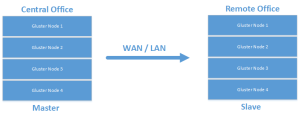
<p>Leveraging native GlusterFS geo-replication for a single volume is a one-way street. A replicated volume is configured in a traditional master/slave configuration.</p>

<p><img src="/assets/glustergeo1-300x118-1.png" alt="simple" class="img-responsive" /></p>

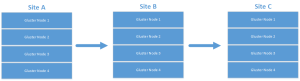
<p>It can also be configured for cascading setups that allow for more interesting archival configurations.</p>

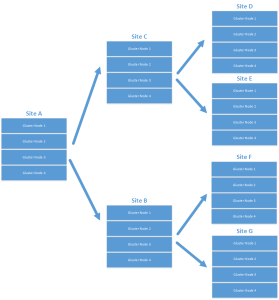
<p><img src="/assets/glustergeo2-300x81-2.png" alt="multisite" class="img-responsive" /></p>

<p>Or even:</p>

<p><img src="/assets/glustergeo3-279x300-3.png" alt="cascade" class="img-responsive" /></p>

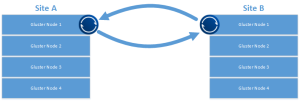
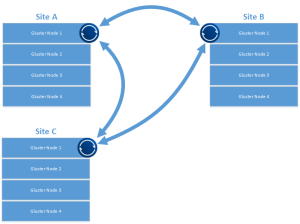
<p>While I’m sure this works for replication and certain DR scenarios, I’m looking at multi-master configurations with multiple datacenters all “hot”, possibly removing the need for a centralized repository. I’d also like a scenario where all sites serve as DR locations for any other participant while leveraging the closest cluster as a data endpoint for writes. Something like this:</p>

<p><img src="/assets/bittorrent1-300x101-4.png" alt="multihot" class="img-responsive" /></p>

<p>This type of configuration also allows for a more easily grown environment and a quick way to bring another site online.</p>

<p><img src="/assets/Drawing2-300x224-5.png" alt="addsite" class="img-responsive" /></p>

<p>One of the more interesting BT Sync features is the optional use of a tracker service. This helps with peer discovery, letting the tracker announce <code class="language-plaintext highlighter-rouge">SHA2(secret):IP:port</code> to help peers connect directly. The tracker also acts as a STUN server, helping with NAT traversal for peers that can’t directly see each other behind firewalls. Worth noting: even with the tracker service in use, all data transmission is encrypted in flight.</p>

<h1 id="getting-started">Getting Started</h1>

<p>For quick testing, find a couple of boxes to get replication moving between. These could be minimal install Linux boxes, Samba servers, web servers (backup replication?), or in my case, a single node of a Gluster cluster. If you’re interested in getting started with Gluster, <a href="http://www.gluster.org/community/documentation/index.php/Getting_started_overview">here’s a good place to start</a>.</p>

<p><strong>A quick note if you’re using Gluster:</strong> On one of the nodes, make sure the GlusterFS client is installed. Create a directory and mount the volume you want replicated using the GlusterFS client. There are more complicated ways to do this, but for testing, this will work fine.</p>

<h1 id="download-the-client">Download the Client</h1>

<p>Identify the directory you want to replicate and <a href="https://getsync.com/platforms/desktop/">download the client</a> from BitTorrent Labs. For me it was the <a href="https://download-cdn.getsync.com/stable/linux-glibc-x64/BitTorrent-Sync_glibc23_x64.tar.gz">x64 Linux client</a>.</p>

<h1 id="configuration">Configuration</h1>

<p>First, untar the download and get some config files ready. We’ll also build an init.d script to ensure the client runs on startup.</p>

<div class="language-bash highlighter-rouge"><div class="highlight"><pre class="highlight"><code><span class="nb">tar</span> <span class="nt">-xf</span> btsync.tar.gz
<span class="nb">sudo mv </span>btsync /usr/bin
<span class="nb">sudo mkdir</span> /etc/btsync
<span class="nb">sudo mkdir</span> /replication
</code></pre></div></div>

<p>Generate the initial config file:</p>

<div class="language-bash highlighter-rouge"><div class="highlight"><pre class="highlight"><code><span class="nb">sudo </span>btsync <span class="nt">--dump-sample-config</span> <span class="o">&gt;</span> /etc/btsync/btsync.conf
</code></pre></div></div>

<p>Edit the following values in the config. Change the device name:</p>

<div class="language-text highlighter-rouge"><div class="highlight"><pre class="highlight"><code>"device name": "My Sync Device",
</code></pre></div></div>

<p>to:</p>

<div class="language-text highlighter-rouge"><div class="highlight"><pre class="highlight"><code>"device name": "whateveryourhostnameis",
</code></pre></div></div>

<p>Change the storage path:</p>

<div class="language-text highlighter-rouge"><div class="highlight"><pre class="highlight"><code>"storage path" : "/home/user/.sync",
</code></pre></div></div>

<p>to:</p>

<div class="language-text highlighter-rouge"><div class="highlight"><pre class="highlight"><code>"storage path" : "/etc/btsync",
</code></pre></div></div>

<p>Uncomment and set the pid file:</p>

<div class="language-text highlighter-rouge"><div class="highlight"><pre class="highlight"><code>"pid_file" : "/var/run/btsync.pid",
</code></pre></div></div>

<p>Since we’re identifying replicated folders via the config file, the web UI normally available in the Linux client will be disabled. Generate a secret for your share:</p>

<div class="language-bash highlighter-rouge"><div class="highlight"><pre class="highlight"><code><span class="nb">sudo </span>btsync <span class="nt">--generate-secret</span>
</code></pre></div></div>

<p>I find it easier to dump the secret directly to the bottom of the config file:</p>

<div class="language-bash highlighter-rouge"><div class="highlight"><pre class="highlight"><code><span class="nb">sudo </span>btsync <span class="nt">--generate-secret</span> <span class="o">&gt;&gt;</span> /etc/btsync.conf
</code></pre></div></div>

<p>In the shared folders section, replace <code class="language-plaintext highlighter-rouge">MY_SECRET_1</code> with the secret you generated:</p>

<div class="language-text highlighter-rouge"><div class="highlight"><pre class="highlight"><code>"secret" : "GYX6MWA67INIBN5XRHBQZRTGYX6MWA67XRHPJOO6ZINIBN5OQA", // * required field
</code></pre></div></div>

<p>Update the directory:</p>

<div class="language-text highlighter-rouge"><div class="highlight"><pre class="highlight"><code>"dir" : "/replication", // * required field
</code></pre></div></div>

<p>In the shared folders section, comment out the example known hosts:</p>

<div class="language-text highlighter-rouge"><div class="highlight"><pre class="highlight"><code>// "192.168.1.2:44444",
// "myhost.com:6881"
</code></pre></div></div>

<p><strong>Important:</strong> You’ll need to remove the leading <code class="language-plaintext highlighter-rouge">/*</code> and trailing <code class="language-plaintext highlighter-rouge">*/</code> from the shared folders section.</p>

<p>Start bittorrent sync with the config:</p>

<div class="language-bash highlighter-rouge"><div class="highlight"><pre class="highlight"><code>btsync <span class="nt">--config</span> /etc/btsync.conf
</code></pre></div></div>

<h1 id="sync-init-script">Sync Init Script</h1>

<p>Not claiming this is a work of art, but it gets the job done. Create <code class="language-plaintext highlighter-rouge">/etc/init.d/btsync</code> with the following:</p>

<div class="language-bash highlighter-rouge"><div class="highlight"><pre class="highlight"><code><span class="c">#!/bin/sh</span>
<span class="c">#</span>
<span class="c"># chkconfig: - 27 73</span>
<span class="c"># description: Starts and stops the btsync Bittorrent sync client</span>
<span class="c">#</span>
<span class="c"># pidfile: /var/run/btsync.pid</span>
<span class="c"># config: /etc/btsync.conf</span>

<span class="c"># Source function library.</span>
<span class="nb">.</span> /etc/rc.d/init.d/functions

<span class="c"># Avoid using root's TMPDIR</span>
<span class="nb">unset </span>TMPDIR

<span class="c"># Source networking configuration.</span>
<span class="nb">.</span> /etc/sysconfig/network

<span class="c"># Check that networking is up.</span>
<span class="o">[</span> <span class="k">${</span><span class="nv">NETWORKING</span><span class="k">}</span> <span class="o">=</span> <span class="s2">"no"</span> <span class="o">]</span> <span class="o">&amp;&amp;</span> <span class="nb">exit </span>1

<span class="c"># Check that btsync.conf exists.</span>
<span class="o">[</span> <span class="nt">-f</span> /etc/btsync.conf <span class="o">]</span> <span class="o">||</span> <span class="nb">exit </span>6

<span class="nv">RETVAL</span><span class="o">=</span>0
<span class="nv">BTSYNCOPTIONS</span><span class="o">=</span><span class="s2">"--config /etc/btsync.conf"</span>

start<span class="o">()</span> <span class="o">{</span>
    <span class="nv">KIND</span><span class="o">=</span><span class="s2">"Bittorrentsync"</span>
    <span class="nb">echo</span> <span class="nt">-n</span> <span class="s2">$"Starting </span><span class="nv">$KIND</span><span class="s2"> services: "</span>
    daemon btsync <span class="s2">"</span><span class="nv">$BTSYNCOPTIONS</span><span class="s2">"</span>
    <span class="nv">RETVAL</span><span class="o">=</span><span class="nv">$?</span>
    <span class="nb">echo</span>
    <span class="o">[</span> <span class="nv">$RETVAL</span> <span class="nt">-eq</span> 0 <span class="o">]</span> <span class="o">&amp;&amp;</span> <span class="nb">touch</span> /var/lock/subsys/btsync <span class="o">||</span> <span class="nv">RETVAL</span><span class="o">=</span>1
    <span class="k">return</span> <span class="nv">$RETVAL</span>
<span class="o">}</span>

stop<span class="o">()</span> <span class="o">{</span>
    <span class="nb">echo
    </span><span class="nv">KIND</span><span class="o">=</span><span class="s2">"Bittorrentsync"</span>
    <span class="nb">echo</span> <span class="nt">-n</span> <span class="s2">$"Shutting down </span><span class="nv">$KIND</span><span class="s2"> services: "</span>
    killproc btsync
    <span class="nv">RETVAL</span><span class="o">=</span><span class="nv">$?</span>
    <span class="o">[</span> <span class="nv">$RETVAL</span> <span class="nt">-eq</span> 0 <span class="o">]</span> <span class="o">&amp;&amp;</span> <span class="nb">rm</span> <span class="nt">-f</span> /var/lock/subsys/btsync
    <span class="nb">echo</span> <span class="s2">""</span>
    <span class="k">return</span> <span class="nv">$RETVAL</span>
<span class="o">}</span>

restart<span class="o">()</span> <span class="o">{</span>
    stop
    start
<span class="o">}</span>

rhstatus<span class="o">()</span> <span class="o">{</span>
    status btsync
    <span class="k">return</span> <span class="nv">$?</span>
<span class="o">}</span>

<span class="c"># Allow status as non-root.</span>
<span class="k">if</span> <span class="o">[</span> <span class="s2">"</span><span class="nv">$1</span><span class="s2">"</span> <span class="o">=</span> status <span class="o">]</span><span class="p">;</span> <span class="k">then
    </span>rhstatus
    <span class="nb">exit</span> <span class="nv">$?</span>
<span class="k">fi

case</span> <span class="s2">"</span><span class="nv">$1</span><span class="s2">"</span> <span class="k">in
    </span>start<span class="p">)</span>        start <span class="p">;;</span>
    stop<span class="p">)</span>         stop <span class="p">;;</span>
    restart<span class="p">)</span>      restart <span class="p">;;</span>
    reload<span class="p">)</span>       reload <span class="p">;;</span>
    status<span class="p">)</span>       rhstatus <span class="p">;;</span>
    condrestart<span class="p">)</span>  <span class="o">[</span> <span class="nt">-f</span> /var/lock/subsys/btsync <span class="o">]</span> <span class="o">&amp;&amp;</span> restart <span class="o">||</span> : <span class="p">;;</span>
    <span class="k">*</span><span class="p">)</span>
        <span class="nb">echo</span> <span class="s2">$"Usage: </span><span class="nv">$0</span><span class="s2"> {start|stop|restart|reload|status|condrestart}"</span>
        <span class="nb">exit </span>2
<span class="k">esac

</span><span class="nb">exit</span> <span class="nv">$?</span>
</code></pre></div></div>

<h1 id="testing-the-sync-service">Testing the Sync Service</h1>

<p>Set the init script to executable and enable it at startup:</p>

<div class="language-bash highlighter-rouge"><div class="highlight"><pre class="highlight"><code><span class="nb">chmod </span>755 /etc/init.d/btsync
chkconfig <span class="nt">--add</span> btsync
chkconfig btsync on
</code></pre></div></div>

<h1 id="other-nodes-and-additional-thoughts">Other Nodes and Additional Thoughts</h1>

<p>With the above in place, configure additional btsync clients on Gluster nodes (or whatever test system you’re using) at your remote locations using the same secret. The mount point / local folder can be different, but the secret must be the same. This will allow replication to start among the identified folders. Thanks for reading and check out other cool use cases for BitTorrent Sync on the <a href="https://forum.resilio.com/">BitTorrent Sync forums</a>.</p>]]></content><author><name></name></author><summary type="html"><![CDATA[update: In early 2016, Resilio was spun out of BitTorrent to bring distributed technology to the enterprise. This is awesome news and I’ll be posting some updates about what Resilio is up to moving forward. Below is my initial post from 2013 that was syndicated on the Bittorrent Sync blog.]]></summary></entry><entry><title type="html">Converged Infrastructure hacking</title><link href="https://theron.wtf/2013/02/26/CI-prototyping-gluster-qemu.html" rel="alternate" type="text/html" title="Converged Infrastructure hacking" /><published>2013-02-26T00:00:00+00:00</published><updated>2013-02-26T00:00:00+00:00</updated><id>https://theron.wtf/2013/02/26/CI-prototyping-gluster-qemu</id><content type="html" xml:base="https://theron.wtf/2013/02/26/CI-prototyping-gluster-qemu.html"><![CDATA[<p>I just wrapped up my presentation at the <a href="http://www.gluster.org/community/documentation/index.php/Planning/CERN_Workshop">Gluster Workshop at CERN</a> where I discussed Open Source advantages in tackling converged infrastructure challenges. Here is my <a href="https://theron.wtf/assets/CI_presentation_26Feb2013.pdf">slidedeck</a>. Just a quick heads up, there’s some animation that’s lost in the pdf export as well as color commentary during almost every slide.</p>

<p>During the presentation I demo’d out the new QEMU/GlusterFS native integration leveraging libgfapi. For those wondering what that means: there’s no need for FUSE anymore and QEMU leverages GlusterFS natively on the back end. Awesome.</p>

<p>For my demo I needed two boxes running QEMU/KVM/GlusterFS to provide the compute and storage hypervisor layers. As I only had a single laptop to tour Europe with, I needed a nested KVM environment.</p>

<p>If you’ve got enough hardware feel free to skip the Enable Nested Virtualization section and jump ahead to Base OS Installation.</p>

<p>This wasn’t an easy environment to get up and running. This is alpha code, so expect to roll your sleeves up. These instructions assume you have Fedora 18 installed and updated with virt-manager and KVM installed.</p>

<h1 id="enable-nested-virtualization">Enable Nested Virtualization</h1>

<p>Since we’re going to install an OS on a VM running on the Gluster/QEMU cluster we’re building, we’ll need nested virtualization. Check if it’s already enabled:</p>

<div class="language-bash highlighter-rouge"><div class="highlight"><pre class="highlight"><code><span class="nb">cat</span> /sys/module/kvm_intel/parameters/nested
</code></pre></div></div>

<p>If it returns <code class="language-plaintext highlighter-rouge">N</code>, load the KVM module with the nested option via modprobe config:</p>

<div class="language-bash highlighter-rouge"><div class="highlight"><pre class="highlight"><code><span class="nb">echo</span> <span class="s2">"options kvm-intel nested=1"</span> | <span class="nb">sudo tee</span> /etc/modprobe.d/kvm-intel.conf
</code></pre></div></div>

<p>Reboot and verify:</p>

<div class="language-bash highlighter-rouge"><div class="highlight"><pre class="highlight"><code><span class="nb">cat</span> /sys/module/kvm_intel/parameters/nested
</code></pre></div></div>

<p>Should return <code class="language-plaintext highlighter-rouge">Y</code>. Host prep is done.</p>

<h1 id="install-vms-os">Install VMs OS</h1>

<p>Starting with the base Fedora laptop, I used virt-manager for VM management. I wanted to use Boxes, but it’s not designed for this type of configuration.</p>

<p>Create a new VM and select the Fedora HTTP install option. I didn’t have an ISO around, and HTTP install is great anyway.</p>

<p><img src="/assets/gluster01-150x150.png" alt="multisite" class="img-responsive" /></p>

<p>Select the HTTP install option and enter the nearest available mirror.</p>

<p><img src="/assets/gluster02-150x150.png" alt="multisite" class="img-responsive" /></p>

<p>For me this was Masaryk University, Brno (where I happened to be sitting during <a href="http://www.devconf.cz/">Dev Days 2013</a>):</p>

<div class="language-text highlighter-rouge"><div class="highlight"><pre class="highlight"><code>http://ftp.fi.muni.cz/pub/linux/fedora/linux/releases/18/Fedora/x86_64/os/
</code></pre></div></div>

<p>I went with an 8GB base disk, 1GB RAM, and a default vCPU. Start the VM build and install.</p>

<p><img src="/assets/gluster03-150x150.png" alt="multisite" class="img-responsive" /></p>

<p>The install takes a bit longer since it downloads files during the initial boot.</p>

<p><img src="/assets/gluster04-150x150.png" alt="multisite" class="img-responsive" /></p>

<p>Select your language and continue to the installation summary screen. Change the software selection option.</p>

<p><img src="/assets/gluster05-150x150.png" alt="multisite" class="img-responsive" /></p>

<p>Select minimal install:</p>

<p><img src="/assets/gluster06-150x150.png" alt="multisite" class="img-responsive" /></p>

<p>During installation, set the root password:</p>

<p><img src="/assets/gluster07-150x150.png" alt="multisite" class="img-responsive" /></p>

<p>Once installation is complete, the VM will reboot. Power it down. We need to pass the CPU flags to the VM before proceeding.</p>

<p>In virt-manager, right-click the VM and select open. In the VM window, select View &gt; Details. Rather than guessing the CPU architecture, select “Copy from host” and click OK.</p>

<p><img src="/assets/gluster08-150x150.png" alt="multisite" class="img-responsive" /></p>

<p>While you’re here, add an additional 20GB virtual drive. Make sure you select virtio for the drive type.</p>

<p><img src="/assets/gluster09-150x150.png" alt="multisite" class="img-responsive" /></p>

<p>Boot the VM and let’s get started.</p>

<h1 id="base-installation-components">Base Installation Components</h1>

<p>Install some base components before getting started with GlusterFS or QEMU. After logging in as root:</p>

<div class="language-bash highlighter-rouge"><div class="highlight"><pre class="highlight"><code>yum update
yum <span class="nb">install </span>nettools wget xfsprogs binutils
</code></pre></div></div>

<p>Create the mount point and format the additional drive:</p>

<div class="language-bash highlighter-rouge"><div class="highlight"><pre class="highlight"><code><span class="nb">mkdir</span> <span class="nt">-p</span> /export/brick1
mkfs.xfs <span class="nt">-i</span> <span class="nv">size</span><span class="o">=</span>512 /dev/vdb
</code></pre></div></div>

<p>Add it to fstab so it persists across reboots:</p>

<div class="language-text highlighter-rouge"><div class="highlight"><pre class="highlight"><code>/dev/vdb /export/brick1 xfs defaults 1 2
</code></pre></div></div>

<p>Mount it:</p>

<div class="language-bash highlighter-rouge"><div class="highlight"><pre class="highlight"><code>mount <span class="nt">-a</span> <span class="o">&amp;&amp;</span> mount
</code></pre></div></div>

<h1 id="firewalls-ymmv">Firewalls. YMMV</h1>

<p>It may be just me, but I struggled getting Gluster to work with firewalld on Fedora 18. Not recommended in production, but for an all-in VM on a laptop deployment, I just disabled and removed it:</p>

<div class="language-bash highlighter-rouge"><div class="highlight"><pre class="highlight"><code>yum remove firewalld
</code></pre></div></div>

<h1 id="gluster-340-alpha-installation">Gluster 3.4.0 Alpha Installation</h1>

<p>Configure and enable the Gluster repo on the VM:</p>

<div class="language-bash highlighter-rouge"><div class="highlight"><pre class="highlight"><code>wget http://download.gluster.org/pub/gluster/glusterfs/qa-releases/3.4.0alpha/Fedora/glusterfs-alpha-fedora.repo
<span class="nb">mv </span>glusterfs-alpha-fedora.repo /etc/yum.repos.d/
</code></pre></div></div>

<p>Update and install:</p>

<div class="language-bash highlighter-rouge"><div class="highlight"><pre class="highlight"><code>yum update
yum <span class="nb">install </span>glusterfs-server glusterfs-devel
</code></pre></div></div>

<p>The <code class="language-plaintext highlighter-rouge">glusterfs-devel</code> package is required for the QEMU integration we’ll be testing.</p>

<h1 id="break-build-a-second-vm">Break: Build a Second VM</h1>

<p>If you’ve made it here, get a coffee and do the install again on a second VM. You’ll need a second replication target before proceeding.</p>

<div class="language-text highlighter-rouge"><div class="highlight"><pre class="highlight"><code>&lt;/end coffee break&gt;
</code></pre></div></div>

<h1 id="network-prep-both-vms">Network Prep: Both VMs</h1>

<p>We’re on the private NAT’d network that virt-manager is managing, so we’ll need static addresses on both VMs and updated <code class="language-plaintext highlighter-rouge">/etc/hosts</code> entries. Not proud here – this is a test environment.</p>

<ol>
  <li>Assign static addresses to both VMs in the NAT range</li>
  <li>Set hostnames on both VMs</li>
  <li>Update <code class="language-plaintext highlighter-rouge">/etc/hosts</code> on both nodes to include both servers</li>
</ol>

<h1 id="back-to-gluster">Back to Gluster</h1>

<p>Start and verify the Gluster service on both VMs:</p>

<div class="language-bash highlighter-rouge"><div class="highlight"><pre class="highlight"><code>service glusterd start
service glusterd status
</code></pre></div></div>

<p>On either host, create the Gluster volume and configure it for replication:</p>

<div class="language-bash highlighter-rouge"><div class="highlight"><pre class="highlight"><code>gluster volume create vmstor replica 2 ci01.local:/export/brick1 ci02.local:/export/brick1
</code></pre></div></div>

<p>Start the volume:</p>

<div class="language-bash highlighter-rouge"><div class="highlight"><pre class="highlight"><code>gluster volume start vmstor
</code></pre></div></div>

<p>Verify:</p>

<div class="language-bash highlighter-rouge"><div class="highlight"><pre class="highlight"><code>gluster volume info
</code></pre></div></div>

<p>If this returns cleanly, you’re up and running with GlusterFS.</p>

<h1 id="building-qemu-dependencies">Building QEMU Dependencies</h1>

<p>Install prerequisites:</p>

<div class="language-bash highlighter-rouge"><div class="highlight"><pre class="highlight"><code>yum <span class="nb">install </span>lvm2-devel git gcc-c++ make glib2-devel pixman-devel
</code></pre></div></div>

<p>Clone QEMU:</p>

<div class="language-bash highlighter-rouge"><div class="highlight"><pre class="highlight"><code>git clone git://git.qemu-project.org/qemu.git
</code></pre></div></div>

<p>Configure the build. I trimmed the target list to save time since I knew I wouldn’t need most QEMU-supported architectures:</p>

<div class="language-bash highlighter-rouge"><div class="highlight"><pre class="highlight"><code>./configure <span class="nt">--enable-glusterfs</span> <span class="nt">--target-list</span><span class="o">=</span>i386-softmmu,x86_64-softmmu,x86_64-linux-user,i386-linux-user
</code></pre></div></div>

<p>With that done, everything on this host is ready. We can start building VMs using GlusterFS natively, bypassing FUSE and leveraging thin provisioning.</p>

<h1 id="creating-virtual-disks-on-glusterfs">Creating Virtual Disks on GlusterFS</h1>

<div class="language-bash highlighter-rouge"><div class="highlight"><pre class="highlight"><code>qemu-img create gluster://ci01:0/vmstor/test01?transport<span class="o">=</span>socket 5G
</code></pre></div></div>

<p>This uses <code class="language-plaintext highlighter-rouge">qemu-img</code> to create a 5GB disk image natively on GlusterFS. The transport socket parameter controls the communication method between QEMU and GlusterFS.</p>

<h1 id="build-a-vm-and-install-onto-the-glusterfs-disk-image">Build a VM and Install onto the GlusterFS Disk Image</h1>

<p>You’ll want something to actually install on the image. I went with TinyCore because I was already pushing up against the limits of this laptop with nested virtualization. <a href="http://distro.ibiblio.org/tinycorelinux">Download TinyCore Linux here</a>.</p>

<div class="language-bash highlighter-rouge"><div class="highlight"><pre class="highlight"><code>qemu-system-x86_64 <span class="nt">--enable-kvm</span> <span class="nt">-m</span> 1024 <span class="nt">-smp</span> 4 <span class="se">\</span>
  <span class="nt">-drive</span> <span class="nv">file</span><span class="o">=</span>gluster://ci01/vmstor/test01,if<span class="o">=</span>virtio <span class="se">\</span>
  <span class="nt">-vnc</span> 192.168.122.209:1 <span class="se">\</span>
  <span class="nt">--cdrom</span> /home/theron/CorePlus-current.iso
</code></pre></div></div>

<p>I skipped using Virsh for the demo and assigned the VNC IP and port manually. Once the VM starts up you can connect to it from your external host and start the install.</p>

<p><img src="/assets/gluster10-150x150.png" alt="multisite" class="img-responsive" /></p>

<p>Select the hard drive built with <code class="language-plaintext highlighter-rouge">qemu-img</code> and follow the OS install procedure.</p>

<h1 id="finished">Finished</h1>

<p>At this point you’re done and can start testing and submitting bugs. I’d expect to see some interesting things with OpenStack in this space as well as tighter oVirt integration moving forward. Let me know if this guide was useful.</p>

<h1 id="side-note">Side Note</h1>

<p>Something completely related: I’m pleased to announce that I’ve joined the Open Source and Standards team at <a href="http://www.redhat.com">Red Hat</a>, working to promote and assist in making upstream projects wildly successful. If you’re unsure what that means or why Red Hat cares about upstream projects, please reach out and say hello.</p>

<h1 id="references">References</h1>

<ul>
  <li><a href="http://www.rdoxenham.com/?p=275">Nested KVM</a></li>
  <li><a href="http://www.cyberciti.biz/faq/linux-kvm-vnc-for-guest-machine">KVM VNC</a></li>
  <li><a href="http://www.youtube.com/watch?v=JG3kF_djclg">Using QEMU to boot VM on GlusterFS</a></li>
  <li><a href="http://qemu-project.org/Download">QEMU downloads</a></li>
  <li><a href="http://raobharata.wordpress.com/2012/10/29/qemu-glusterfs-native-integration">QEMU GlusterFS native integration</a></li>
</ul>]]></content><author><name></name></author><summary type="html"><![CDATA[I just wrapped up my presentation at the Gluster Workshop at CERN where I discussed Open Source advantages in tackling converged infrastructure challenges. Here is my slidedeck. Just a quick heads up, there’s some animation that’s lost in the pdf export as well as color commentary during almost every slide.]]></summary></entry><entry><title type="html">Cause of Death</title><link href="https://theron.wtf/2007/10/08/cause-of-death.html" rel="alternate" type="text/html" title="Cause of Death" /><published>2007-10-08T00:00:00+00:00</published><updated>2007-10-08T00:00:00+00:00</updated><id>https://theron.wtf/2007/10/08/cause-of-death</id><content type="html" xml:base="https://theron.wtf/2007/10/08/cause-of-death.html"><![CDATA[<p>I’m going to stop by and see <a href="http://www.gobeercrazy.com">Mark</a> to get this beer going. <a href="http://bar.brewcrazy.com/index.php?topic=53.0">Cause of Death</a> is a recipe from Johnny Max of the <a href="http://brewcrazy.com/">Brewcrazy</a> podcast. It’s going to be a monster. If you’re interested in helping out, let me know and I’ll nail down the dates.</p>

<hr />

<table>
  <tbody>
    <tr>
      <td><strong>Style:</strong> Old Ale</td>
      <td><strong>ABV:</strong> 21%</td>
      <td><strong>OG:</strong> 1.212 (calculated with starter)</td>
    </tr>
  </tbody>
</table>

<hr />

<h2 id="ingredients">Ingredients</h2>

<ul>
  <li>31 lbs Maris Otter Pale</li>
  <li>2 oz Warrior pellets (16.3% AA), 60 min</li>
  <li>2 oz Amarillo pellets (9% AA), 60 min</li>
  <li>Yeast: White Labs WLP099 Super High Gravity Ale (ferments to 25% ABV)</li>
</ul>

<p><em>Note: the recipe itself is not special. The procedure is what gets you to 21%.</em></p>

<h2 id="procedure">Procedure</h2>

<p>This process is all about keeping the yeast alive well past where it would normally quit.</p>

<p><strong>Starter and mash:</strong></p>

<ol>
  <li>Build a 1-gallon starter at 1.066 gravity in a 6.5-gallon carboy using WLP099. Track volume and gravity carefully since it factors into your final OG calculation.</li>
  <li>Mash 31 lbs Maris Otter at 146°F overnight or until conversion is complete.</li>
  <li>Sparge slowly until all sugar is extracted. Expect around 18 gallons across two kettles.</li>
  <li>Boil down to 4 gallons. Boil slow to reduce caramelization. A clip-on fan blowing across the surface of each pot prevents boilovers and speeds evaporation significantly by blowing steam away. Highly recommended.</li>
  <li>Add hops at 60 minutes remaining.</li>
</ol>

<p>Final wort OG: 1.246. Combined with starter: calculated OG of 1.212.</p>

<p><strong>Fermentation:</strong></p>

<ol>
  <li>Add 1 gallon of wort to the 2-gallon starter.</li>
  <li>Oxygenate for at least 15 minutes with O2 (or 40+ minutes if using air). Affix airlock.</li>
  <li>Can the remaining 3 gallons of wort in 1-quart mason jars: siphon wort into jars, set lids loosely, water bath boil for 15 minutes, then tighten.</li>
  <li>Ferment until activity slows.</li>
  <li>Add one quart of canned wort per day and oxygenate 3-5 minutes with O2 (or 9-15 min with air). Oxygenation is essential to keep yeast viable past 20% ABV.</li>
  <li>Ferment out.</li>
</ol>

<p><strong>Pushing past 20%:</strong></p>

<p>When fermentation stalls (and it will), add 8 crushed Beano tablets to convert non-fermentable sugars into fermentable ones. If activity slows again, add 5 more. Next time I’d add Beano sooner, probably one day after the last quart of wort goes in.</p>

<p><strong>IBUs:</strong> 184 according to Beertools. With that much alcohol and residual sweetness, it doesn’t taste nearly as bitter as that number suggests. Age helps a lot.</p>

<h2 id="what-id-do-differently">What I’d Do Differently</h2>

<ul>
  <li>Add Beano earlier in the process</li>
  <li>Use some roastier grains for more flavor depth</li>
</ul>]]></content><author><name></name></author><summary type="html"><![CDATA[I’m going to stop by and see Mark to get this beer going. Cause of Death is a recipe from Johnny Max of the Brewcrazy podcast. It’s going to be a monster. If you’re interested in helping out, let me know and I’ll nail down the dates.]]></summary></entry><entry><title type="html">Tom’s Brown Ale</title><link href="https://theron.wtf/2007/10/08/toms-brown-ale.html" rel="alternate" type="text/html" title="Tom’s Brown Ale" /><published>2007-10-08T00:00:00+00:00</published><updated>2007-10-08T00:00:00+00:00</updated><id>https://theron.wtf/2007/10/08/toms-brown-ale</id><content type="html" xml:base="https://theron.wtf/2007/10/08/toms-brown-ale.html"><![CDATA[<p>I initially brewed this American Brown Ale for my Dad’s return from Iraq. It’s by far my hands-down favorite brew. With 10 gallons on tap I invited some friends over to try it, and 10 gallons goes fast. I managed to save some for my Dad, and all parties agreed it was one of the best I’d brewed.</p>

<p>I’m going to brew it again shortly, quite possibly for teach-a-friend-to-homebrew day down at Raccoon River.</p>

<hr />

<table>
  <tbody>
    <tr>
      <td><strong>Style:</strong> BJCP 10-D American Brown Ale</td>
      <td><strong>Batch:</strong> 10 gallons</td>
      <td><strong>ABV:</strong> ~5.5%</td>
      <td><strong>OG:</strong> 1.055</td>
      <td><strong>IBU:</strong> 41</td>
    </tr>
  </tbody>
</table>

<hr />

<h2 id="grain-bill">Grain Bill</h2>

<table>
  <thead>
    <tr>
      <th>Grain</th>
      <th>Amount</th>
      <th>%</th>
    </tr>
  </thead>
  <tbody>
    <tr>
      <td>2-row Pale Malt</td>
      <td>18 lbs</td>
      <td>86.7%</td>
    </tr>
    <tr>
      <td>Crystal 80L</td>
      <td>1 lb</td>
      <td>4.8%</td>
    </tr>
    <tr>
      <td>CaraPilsner</td>
      <td>1 lb</td>
      <td>4.8%</td>
    </tr>
    <tr>
      <td>Chocolate Malt</td>
      <td>0.5 lbs</td>
      <td>2.4%</td>
    </tr>
    <tr>
      <td>Roasted Barley</td>
      <td>0.25 lbs</td>
      <td>1.2%</td>
    </tr>
  </tbody>
</table>

<h2 id="hops">Hops</h2>

<table>
  <thead>
    <tr>
      <th>Hop</th>
      <th>Form</th>
      <th>AA</th>
      <th>Amount</th>
      <th>Time</th>
    </tr>
  </thead>
  <tbody>
    <tr>
      <td>Northern Brewer</td>
      <td>Whole</td>
      <td>9%</td>
      <td>1.5 oz</td>
      <td>75 min</td>
    </tr>
    <tr>
      <td>Northern Brewer</td>
      <td>Whole</td>
      <td>9%</td>
      <td>0.5 oz</td>
      <td>30 min</td>
    </tr>
    <tr>
      <td>Cascade</td>
      <td>Whole</td>
      <td>6.8%</td>
      <td>1.5 oz</td>
      <td>10 min</td>
    </tr>
    <tr>
      <td>Cascade</td>
      <td>Whole</td>
      <td>6.8%</td>
      <td>0.5 oz</td>
      <td>Dry hop</td>
    </tr>
  </tbody>
</table>

<h2 id="yeast-and-extras">Yeast and Extras</h2>

<ul>
  <li>Wyeast 1187 Ringwood Ale (or White Labs WLP007 Dry English Ale)</li>
  <li>0.1 oz Irish Moss at 15 min</li>
</ul>

<h2 id="mash">Mash</h2>

<p>Single step. Saccharification at 155°F for 60 minutes, mash-out at 167°F for 5 minutes, sparge at 170°F.</p>

<h2 id="fermentation">Fermentation</h2>

<ul>
  <li>Primary: 1 week at 65-70°F</li>
  <li>Secondary: 1 week at 65°F</li>
  <li>Lager: 2 weeks at 55°F with 0.5 oz Cascade dry hop</li>
</ul>

<hr />

<p>This one I’ll keep brewing.</p>]]></content><author><name></name></author><summary type="html"><![CDATA[I initially brewed this American Brown Ale for my Dad’s return from Iraq. It’s by far my hands-down favorite brew. With 10 gallons on tap I invited some friends over to try it, and 10 gallons goes fast. I managed to save some for my Dad, and all parties agreed it was one of the best I’d brewed.]]></summary></entry></feed>